
What does ‘blue screen of death’ mean
Understanding the Infamous Blue Screen of Death: What It Is, Why It Happens, and How to Fix It
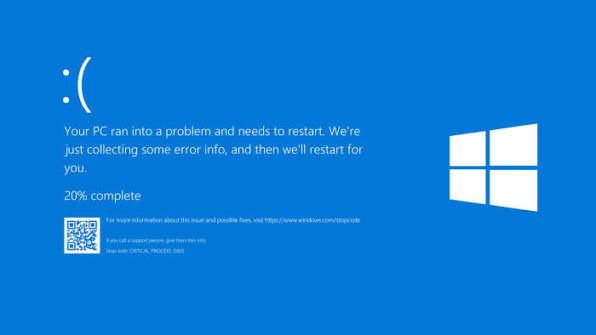
If you’ve ever experienced an unexpected halt while working on your Windows computer, accompanied by a screen drenched in a distinct, almost alarming shade of blue, you’ve encountered the dreaded Blue Screen of Death, or BSOD for short. It’s a common but nerve-wracking experience that can unnerve even seasoned users. But what exactly is this blue screen signalling? Why does it happen, and more importantly, how can you handle it effectively? Let’s unpack all of this in a way that’s easy to digest, peppered with insights from my own tech support experience and practical tips you can use right away.
What Is the Blue Screen of Death?
At its core, the Blue Screen of Death is Windows’ way of waving a red flag — or rather, a blue one — signalling that a critical error has occurred at the system level from which it simply cannot recover without shutting down. Unlike a typical app crashing, which you can usually shrug off by restarting the rogue software, a BSOD means a full-blown system failure. It’s serious.
Sometimes called a stop error screen, fatal error, or bug check, the BSOD forces the computer to come to a grinding halt to protect itself from potentially damaging operations. Until you reboot, your computer is essentially on pause.
A Brief History
Believe it or not, the BSOD isn’t some modern-day villain; it first appeared way back in Windows 1.0 in 1985! However, it wasn’t until Windows 3.0 (1990) that the blue screen became widely recognized as a tool Microsoft used to address critical system errors, especially memory-related glitches. Back then, it was a plain-text screen packed with cryptic technical jargon, designed for technicians and savvy users to diagnose problems.
Fast forward to the Windows 95 and 98 era, when BSODs became notorious for interrupting users’ mid-task and earning their grim nickname. Microsoft has since softened the message aesthetically and added helpful ‘stop codes’ and QR codes from Windows 10 onward, making it easier to research the specific issues causing the crash. Yet, the core message remains: “Something went seriously wrong, so hit restart!”
Why Does the BSOD Crash Your Computer?
The BSOD can be triggered by a variety of hardware and software issues. From my years troubleshooting computers, these are the big culprits you’re likely to encounter:
Hardware Issues
– Faulty RAM: Imagine your computer’s memory modules as short-term memory; if one is broken or malfunctioning, it can crash the whole system.
– Storage Problems: Hard drives and SSDs with bad sectors or corrupted files can confuse Windows, causing fatal errors.
– CPU Overclocking Gone Wrong: Sometimes in an attempt to squeeze extra performance, users push their processors beyond safe limits, which can backfire spectacularly.
– Power Supply Flaws: Insufficient or unstable power can cause sudden shutdowns.
– Overheating Components: High temperatures can cause hardware to fail temporarily or permanently.
– Graphics Card Troubles: Out-of-date or corrupted GPU drivers, or overclocked graphics cards, can halt your system abruptly.
– Motherboard BIOS Glitches: Running outdated firmware or incorrect BIOS settings may create system instability.
Software Conflicts
– Incompatible Applications: Installing software that doesn’t play nice with your OS can send things sideways.
– Malware: Harmful software can corrupt crucial system files or interfere with processes.
– Buggy System Updates: Sometimes, even official updates can introduce kernel-level bugs.
– Conflicting Third-Party Software: Antivirus tools or firewalls may clash with Windows if not properly maintained.
– Outdated or Corrupt Drivers: Drivers act as translators between Windows and hardware; when they fail, your computer can’t communicate properly.
– Corrupted Files from Improper Shutdowns: Forcefully turning off your PC or failed updates can damage system files.
Common BSOD Stop Codes: Decoding the Error Messages
When the BSOD appears, it often displays a hexadecimal stop code—a shorthand that techies and support folks use to zero in on the exact issue. Windows comes with over 270 such codes, though many are quite rare. Here are some of the ones you might bump into most often:
– KMODE_EXCEPTION_NOT_HANDLED: A kernel-mode program tried something that the system couldn’t handle, often related to faulty drivers.
– NTFS_FILE_SYSTEM: Points to issues with your hard drive or SSD’s file system.
– DATA_BUS_ERROR: Usually caused by defective RAM interfering with data transfer.
– IRQL_NOT_LESS_OR_EQUAL: When a driver or hardware component tries to access memory, it shouldn’t.
– PAGE_FAULT_IN_NONPAGED_AREA: Generally, a memory or driver-related problem.
– CRITICAL_PROCESS_DIED: A vital system process crashed unexpectedly.
– SYSTEM_THREAD_EXCEPTION_NOT_HANDLED: A system thread caused an unhandled exception, pointing to bad drivers or hardware.
– VIDEO_TDR_TIMEOUT_DETECTED: Graphics driver failed to respond; often a GPU or driver issue.
– SYSTEM_SERVICE_EXCEPTION: A system-level service faulted, frequently due to corrupted files or hardware.
– DPC_WATCHDOG_VIOLATION: System detected a stuck routine, commonly due to SSD firmware or driver conflicts.
From identifying the stop code to looking it up online, this information can be a lifesaver in troubleshooting.
How Can You Fix the Blue Screen of Death?
Encountering a BSOD can feel like a nightmare, especially if it happens often—but take heart! Most of the time, there are practical steps you can take to get your system back on track:
1. Restart Your Computer
Most issues are temporary glitches, so a reboot can sometimes clear the error.
2. Boot into Safe Mode
Safe Mode loads minimal drivers, helping you determine if the problem is with software or drivers you added recently. Access this by pressing F8 or Shift + F8 during startup.
3. Update Drivers
Outdated or corrupted drivers are among the top offenders. Use Device Manager to check for devices with warning symbols and update their drivers.
4. Run Windows Update
Microsoft regularly rolls out fixes for bugs and compatibility problems. Keeping your system updated goes a long way.
5. Scan for Malware
Malware can wreck havoc silently. Use a trusted antivirus program to scan your PC.
6. Use System File Checker
Commands like ‘sfc /scannow’ attempt to repair corrupted Windows files that might be causing crashes.
7. Check Your Hard Drive
Running ‘chkdsk /f /r’ in command prompt helps find and fix errors on your storage drive.
8. Undo Recent Changes
If the problem surfaced after installing new software or hardware, try uninstalling it.
9. Use System Restore
Roll back your system to a previous state before the BSODs started.
10. Reset or Reinstall Windows
When all else fails, using Windows’ reset feature can be a fresh start, with options to keep your files intact.
If persistent BSODs still plague your system despite these efforts, it’s probably time to have a professional technician take a closer look at your hardware.
Does BSOD Mean You Have a Virus?
Not necessarily. While malware can indeed cause BSODs, many errors are caused by hardware or software conflicts unrelated to viruses. Nevertheless, running a thorough antivirus scan is a smart move anytime you encounter sudden crashes.
My Experience Helping Users
At the tech support firm I work with, End User Tech Solutions in Kampala, repairing BSOD problems is a weekly routine. Often, we find that a simple driver update or hardware check fixes the issue, and many clients walk away within the day with their computers up and running smoothly again.
Adjusting How Windows Handles BSODs: A Power User’s Guide
If you’re a bit more tech-savvy, Windows lets you customize what happens when a BSOD strikes.
– Control Automatic Restart: In System Properties > Advanced > Startup and Recovery, you can uncheck “Automatically restart” so that you see the BSOD message instead of Windows rebooting instantly.
– Choose Memory Dump Type: You can configure the kind of crash data Windows saves to help with debugging—ranging from small memory dumps for quick fixes to complete dumps for in-depth analysis.
Preventing BSODs: Tips for a Smoother Computing Experience
While not every BSOD is avoidable, these best practices can reduce their frequency:
– Regularly update Windows and drivers to stay ahead of bugs.
– Use reliable hardware and keep your firmware updated.
– Avoid overclocking hardware beyond rated speeds.
– Keep your PC clean and well-ventilated to prevent overheating.
– Only install software from trusted sources, and regularly scan for malware.
– Monitor your system logs for early warning signs using Event Viewer.
Wrapping It Up
Though the Blue Screen of Death might feel like the end of the line, it’s essentially Windows’ built-in safety mechanism to protect your computer from serious damage. By understanding what it means, why it happens, and how to troubleshoot or prevent it, you can navigate these frustrating interruptions with confidence—and maybe even a bit of humor. After all, every crash is just a clue nudging you toward a healthier computer. Keep calm, and blue screen on!
📞 Phone / Call +256700393395 or WhatsApp +256700393395
🌍 Available in: Kampala Uganda