
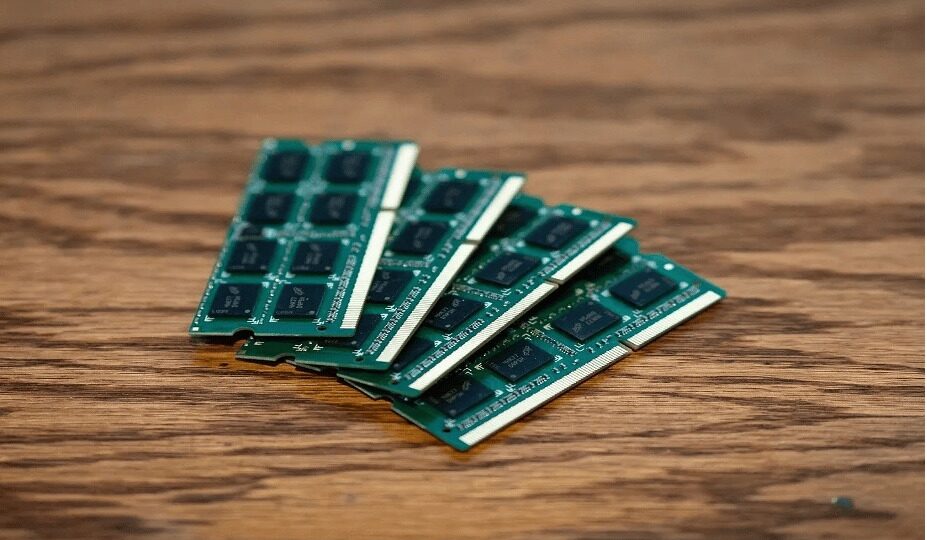
How to Know If Your Laptop Needs a RAM Upgrade
Is Your Laptop Dragging? Here’s How to Tell If It’s Time to Upgrade Your RAM:
Have you ever sat staring at your laptop, willing it to wake up faster? Maybe it takes ages just to boot, your browser tabs freeze mid-scroll, or that massive Excel spreadsheet opens like it’s stuck in rush hour traffic. Sound familiar? You might be blaming your Wi-Fi or some rogue software update, but the real villain could be right under your fingertips: not enough RAM.
Let’s break this down. RAM, or Random Access Memory, is your laptop’s short-term workspace. Imagine it as the desk where you spread out all your active projects—apps, games, background tasks—all vying for quick access. The more you juggle, the bigger that desk needs to be. When there’s not enough space, everything slows down: sluggish startups, apps freezing or crashing, games stuttering, and the dreaded “high memory usage” warnings.
The good news? Upgrading RAM is one of the simplest, most cost-effective fixes that can instantly breathe new life into your device. Throughout this guide, I’ll share real-life scenarios and practical tips from my tech journeys to help you recognize when your laptop is begging for more memory—and what you can do about it.
1. Your Morning Coffee Takes Less Time Than Your Laptop Boot-Up
If your typical morning involves grabbing a cup of tea while your laptop stares back blankly at you during startup, that’s a pretty telling sign. Both Windows and macOS don’t just wake up the operating system—they also kickstart dozens of background processes and automatically launched apps, all of which hog your RAM. When it’s maxed out, your laptop shuffles data between RAM and your slower hard drive or even SSD, which causes that frustrating “loading…” limbo.
What I’ve done in my own setups? First things first: declutter your startup programs. On Windows, dive into Task Manager → Startup; on macOS, head to System Settings → Login Items. If your boot times still feel eternal, it’s probably time to boost your RAM. Moving from 8GB to 16GB made a world of difference for my old laptop’s wake-up time.
2. Apps Freeze or Crash Like It’s Their Hobby
Picture this: you’re mid-presentation, juggling emails and browser tabs, then suddenly—bam!—an app freezes or quits unexpectedly. While bugs do play a role, frequent freezes often mean your RAM is overloaded. Apps love memory, with browsers like Chrome notorious for gobbling up gigabytes if left unchecked. Creative programs and data-heavy Excel files take even bigger bites.
Pro tip from experience: keep an eye on your memory hogs with Task Manager (Windows) or Activity Monitor (macOS). Close unused apps and tabs, and if your RAM usage regularly hits 80% or higher, consider an upgrade pronto.
3. Gamers: Lag Persists Even With a Killer GPU? Check Your RAM
Invested in a fancy graphics card but still battling stuttering gameplay? It’s not always the game’s fault. Modern titles demand serious RAM to load textures and background processes swiftly. If your PC’s memory can’t keep pace, the game resorts to slow storage swaps, causing those annoying frame drops.
Back in the day, 8GB was “just fine” for gaming, but 2026 has raised the bar. Most new games suggest 16GB minimum, with 32GB preferred for open-world or VR experiences. Pair a beastly GPU with skimpy RAM, and it’s like putting racing tires on a car with a tiny engine—you simply don’t reach full speed. Closing background apps or plugging in more RAM can make gaming truly buttery smooth.
4. Multitasking Feels Like Navigating a Slushy Road
Switching between email, browser, video calls, and spreadsheets should be instant. If it feels like wading through molasses, your system is likely hungry for RAM. When you stack multiple apps—like Spotify humming in the background alongside a dozen browser tabs and heavy-duty documents—your laptop resorts to virtual memory, which is much slower than actual RAM. This bottleneck turns window-swapping into a test of patience.
From hands-on experiments, I found that monitoring memory use helps. Windows users can find it in Task Manager → Performance → Memory; macOS users look in Activity Monitor → Memory. If you constantly max out your RAM, doubling it can be a game-changer. For heavy multitaskers, 16GB is a practical baseline, while 32GB offers plenty of breathing space.
5. Frequent “High Memory Usage” Warnings and Persistent Fan Noise
If your laptop’s fans sound like a jet taking off when you’re just browsing or typing, or if those “high memory usage” alerts keep popping up, it’s a cry for help from your RAM. When memory is nearly full, your system spends extra energy shuffling data around, causing slowdowns and hardware stress.
Keep tabs on your RAM usage as described above. If it’s consistently topping 80–90%, it’s definitely upgrade time. For everyday users, 16GB strikes a nice balance between smooth multitasking and cost; professionals working with big files or intense software may want even more.
6. Large Files Open at a Glacial Pace
Opening massive files like 4K videos, CAD models, or heavy spreadsheets shouldn’t feel like watching paint dry. But when your RAM is insufficient, your PC spends extra time swapping parts of the file between storage and memory, making everything sluggish. This is especially common for designers, video editors, engineers—and yes, even diligent students dealing with large datasets.
A practical rule: if your file size is close to or exceeds your current RAM, expect trouble. Upgrading to 16GB is a good start, with 32GB or more recommended for demanding creative or technical workloads.
7. Your Laptop Just Feels… Old
Sometimes the signs are subtle—apps take longer to open, updates stall, and multitasking becomes a chore. That creeping slowness often stems from outdated RAM that no longer meets the demands of modern software. What was plenty a few years ago might barely cut it now: 4GB RAM was commonplace in 2018 but is almost unusable today; 8GB can limp along for light users, while 16GB or more is becoming the new standard.
If your laptop supports it, upgrading the memory can extend its lifespan significantly. If not, you might be better off investing in a new machine.
How Much RAM Do You Really Need?
Not everyone needs a RAM monster. The ideal amount depends on your routine. Too little and you hit performance bottlenecks; too much and you’re simply spending extra cash on unused memory.
DIY Upgrade or Time for a New Laptop?
If your laptop has accessible RAM slots, upgrading is usually the easiest and cheapest fix—consider it a memory boost injection that can extend your PC’s life by years. For example, a jump from 8GB to 16GB turned my sluggish daily driver into a smooth operator.
But beware: some sleek ultrabooks come with soldered RAM that can’t be upgraded. If you’re maxed out or your CPU and storage are outdated too, a full replacement could save you future headaches.
Final Thoughts
Slow startups, crashing apps, lagging games, and fan noise—all these screams point to one thing: your laptop needs more RAM. Upgrading is often the simplest, most wallet-friendly way to reinvigorate your device and enjoy a smoother, quicker user experience.
So whether you’re a gamer chasing those frame-perfect moments, a creative hound wrangling huge files, or just tired of waiting, keep an eye on your memory. Sometimes, adding a few gigabytes is all it takes to turn frustration into fluid productivity.
Don’t let your laptop’s short-term memory hold you back—upgrade your RAM and unlock its full potential!
—
FAQs
1. How can I tell if I need more RAM?
If your device frequently slows down, apps freeze or crash, or you see “high memory usage” warnings, it’s a pretty clear sign.
2. Is upgrading RAM still worth it in 2026?
Absolutely. It’s one of the most affordable, effective ways to boost performance and extend your PC’s lifespan.
3. How much RAM do everyday users need?
8GB works for light tasks, but 16GB is the sweet spot for smooth multitasking and future-proofing.
4. Can I upgrade RAM on any laptop?
Not always. Check your device specs since some laptops have memory soldered to the motherboard, making upgrades impossible.
Ready to give your laptop the boost it deserves? Keep these tips handy and let your memory work for you—not against you.
📞 Phone / Call +256700393395 or WhatsApp +256700393395
🌍 Available in: Kampala Uganda